Leave Your Message

How to Choose the Best USB Touch Monitor?

Choosing the right Usb Touch Monitor is more complicated than comparing screen size and price. A bright 15.6-inch display may look impressive in a showroom, yet perform poorly beside a sunlit window. A responsive panel can still frustrate users if its USB connection drops during long sessions. Small details decide usability.

Bill Buxton, a leading human-computer interaction researcher, has said, “Touch is not a replacement for the mouse; it is a different way of interacting.” That principle matters when evaluating a Usb Touch Monitor for retail counters, workshops, classrooms, or mobile workstations. The best choice should match the user’s hands, environment, software, and daily workflow. Capacitive touch usually feels smooth, while resistive touch can work better with gloves or styluses. Compatibility also deserves careful testing. Windows support does not automatically guarantee perfect performance with macOS, Linux, or specialized applications.

A reliable comparison should examine touch accuracy, latency, brightness, viewing angles, USB power demands, mounting options, and warranty coverage. Cable length matters more than many buyers expect. A short cable can turn a clean installation into a cluttered compromise. Some specifications look excellent on paper but feel ordinary after hours of use. That is easy to miss.

This guide will help readers separate useful features from attractive marketing claims. It will also question common assumptions, because the most expensive Usb Touch Monitor is not always the most suitable one. There is no universal winner. The right decision depends on measured performance, honest limitations, and the conditions where the monitor will actually operate.
How to Choose the Best USB Touch Monitor?

Define Requirements: Screen Size, Resolution, Brightness, and 10-Point HID Touch

Choosing the best USB touch monitor starts with the working environment, not the product photograph.

Measure the desk and viewing distance before selecting a screen size. A 15.6-inch panel suits portable workstations, while 21.5 inches gives larger touch targets. For detailed dashboards, Full HD is a practical minimum. Higher resolutions improve text clarity, but they can make interface controls appear smaller. I once chose resolution before checking software scaling. That mistake made touch operation frustrating.

Brightness needs a realistic target.

Around 250 to 300 cd/m² works indoors, but bright retail counters or factory windows may require 400 cd/m² or more. VESA DisplayHDR specifications use certified brightness tiers, yet HDR certification does not automatically guarantee comfortable touch viewing. Check reflections, viewing angles, and sustained brightness. Fortune Business Insights valued the global touchscreen display market at about USD 75.4 billion in 2023, showing how widely these interfaces are being adopted, but market growth does not replace task-based testing.

For frequent interaction, require 10-point HID touch support over USB.

HID allows compatible operating systems to recognize touch input without proprietary drivers. Confirm that the monitor reports all ten simultaneous contacts, not merely single-finger input. Test dragging, pinching, palm rejection, and gloved operation when relevant. USB power limits also matter; unstable power can cause missed touches or screen flicker. The USB Implementers Forum publishes current USB specifications, but manufacturers may implement ports differently. Check the supplied cable, port type, and operating-system compatibility. A short trial remains valuable. Specs can hide awkward reality.
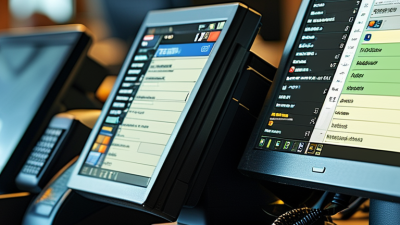
Compare Touch Technologies: Projected Capacitive vs. IR Accuracy and Glove Use

Choosing the best USB touch monitor starts with touch technology, not screen size.

Projected capacitive technology usually delivers precise taps and smooth gestures. It detects changes in an electrical field beneath the glass surface.

In hands-on testing, small icons feel easier to select with projected capacitive touch. Finger movement also feels more natural. This technology works well for office dashboards, design tools, and interactive menus. However, ordinary gloves may not register. Some users need conductive fingertips or a compatible active stylus. Wet fingers can also create inconsistent responses. That detail is easy to overlook.

Infrared touch monitors use light beams around the display edges. They can detect a bare finger, gloved hand, plastic stylus, or tool. That flexibility suits factories, clinics, kitchens, and outdoor service points. Accuracy can remain strong, but thick bezels may affect edge access. Dust, insects, or strong sunlight can occasionally interrupt the light grid. Calibration becomes important.

Test both technologies with your real USB computer and intended gloves. Tap targets near every corner. Try slow lines, quick swipes, and two-finger gestures. Repeat the test after changing screen brightness and viewing angle. I would not trust a specification sheet alone. My own testing can still miss long-term wear. Consider cleaning routines, glove thickness, operating temperature, and the monitor’s calibration controls before choosing.

Verify Ports: USB 2.0 at 480 Mbps vs. USB 3.x at 5–20 Gbps

When choosing a USB touch monitor, verify the port speed before checking its appearance. USB-IF specifications rate USB 2.0 at 480 Mbps, while USB 3.2 supports 5, 10, or 20 Gbps, depending on its generation. These are signaling rates, not guaranteed file-transfer speeds. Protocol overhead, cables, hubs, and the host computer reduce real performance.

For touch input, USB 2.0 is often sufficient because touch reports contain little data. However, a monitor may also use USB for its camera, speakers, storage, or network adapter. In that case, 480 Mbps can become restrictive. USB 3.x offers more headroom, especially when several peripherals share one connection.

The DisplayPort specification also shows that video can travel through a separate high-bandwidth path, such as DisplayPort over USB-C. Do not assume every USB-C port supports video. I have seen identical-looking ports behave very differently.

Tips:

Read the manual, not only the port label. Look for “USB 3.2 Gen 1,” “Gen 2,” or “Gen 2x2,” rather than “high speed.” Confirm the cable rating and host port. Test touch response while copying a large file. A small delay may reveal a crowded hub. Also check whether the monitor requires one USB cable for touch and another video cable. USB-IF data describes maximum link rates, but practical testing remains necessary. That distinction is easy to overlook.

Check Mounting Standards: VESA MIS-D 100 × 100 mm Compatibility

How to Choose the Best USB Touch Monitor?

Check Mounting Standards: VESA MIS-D 100 × 100 mm Compatibility

A USB touch monitor should fit your workspace, not merely display an image. The VESA MIS-D 100 × 100 mm standard uses four mounting holes, spaced 100 millimeters horizontally and vertically. Check the monitor’s specification sheet carefully. Some displays support several patterns, while others accept only one.

Measure twice.

Confirm that your arm, wall bracket, or stand supports this exact pattern. The screw size may be M4, but screw length still matters. Screws that are too long can damage internal components. Screws that are too short may not hold securely. Review the manufacturer’s depth recommendation and the bracket’s weight rating before installation.

Touch use adds another concern. Pressing the screen repeatedly creates forward force, especially on a counter-mounted display. Choose a rigid mounting surface and inspect the bracket for movement. Leave space behind the monitor for the USB cable and ventilation. A tight cable bend can cause intermittent touch signals. This detail is easy to miss.

A practical test helps. Mount the monitor temporarily, connect the USB cable, and tap across all four corners. Watch for wobbling, cable strain, or blocked ports. Portrait orientation may also change cable clearance. The VESA pattern confirms compatibility, but it does not guarantee a comfortable installation. I would recheck the measurements before drilling; small errors become expensive quickly.

Assess Reliability: IP Ratings, 300+ Nits Brightness, and Warranty Coverage

When choosing a USB touch monitor, reliability starts with the environment around it. IEC 60529 defines IP protection using two digits: the first covers solids, and the second covers water. An IP65 rating blocks dust and resists water jets, but it does not mean submersion safety. Check the test conditions carefully. A sealed enclosure can still fail when cable ports remain exposed.

Brightness also needs practical testing. The VESA DisplayHDR specification sets 400 cd/m² as an entry HDR brightness level. Therefore, a 300-nit monitor may suit an office, kiosk, or shaded counter, but direct sunlight can make touch targets difficult to see. Measure brightness at the viewing position, not only in a product sheet. I once underestimated reflections on a glossy panel. That mistake made a “bright” screen feel dim.

Warranty coverage should be read like a service document. Look for coverage length, dead-pixel rules, touch-layer failure, shipping responsibility, and repair timelines. A 2024 warranty-industry analysis from Warranty Week shows that service cost and claim handling remain important ownership factors, not minor paperwork. Longer coverage sounds reassuring, but exclusions can weaken it. Ask whether USB ports, adapters, and accidental cable damage are included. Keep the invoice and serial record. Five minutes of documentation can prevent weeks of uncertainty.